Compliance Module Guide
Last updated: 2026-04-29
Status: Stable
Audience: Compliance Officers, CISOs, Internal Auditors
Purpose
URIP's compliance module is a native Sprinto-equivalent implementation. It answers: If the audit landed next week, would we pass? It seeds ~1,476 control records across 20 frameworks; 13 controls across 9 connector sources are currently auto-evidenced from your live connector data today (e.g. CrowdStrike critical findings → ISO 27001 A.12.6.1). The remaining ~1,463 control records accept manual evidence upload through the auditor portal — they are not "automated" end-to-end. See the auto-evidence expansion roadmap for the canonical mapping and expansion plan. Spreadsheet pivoting and manual evidence re-entry are eliminated for the auto-evidenced 13; the rest still need an auditor's upload, but the system tracks it all in one place.
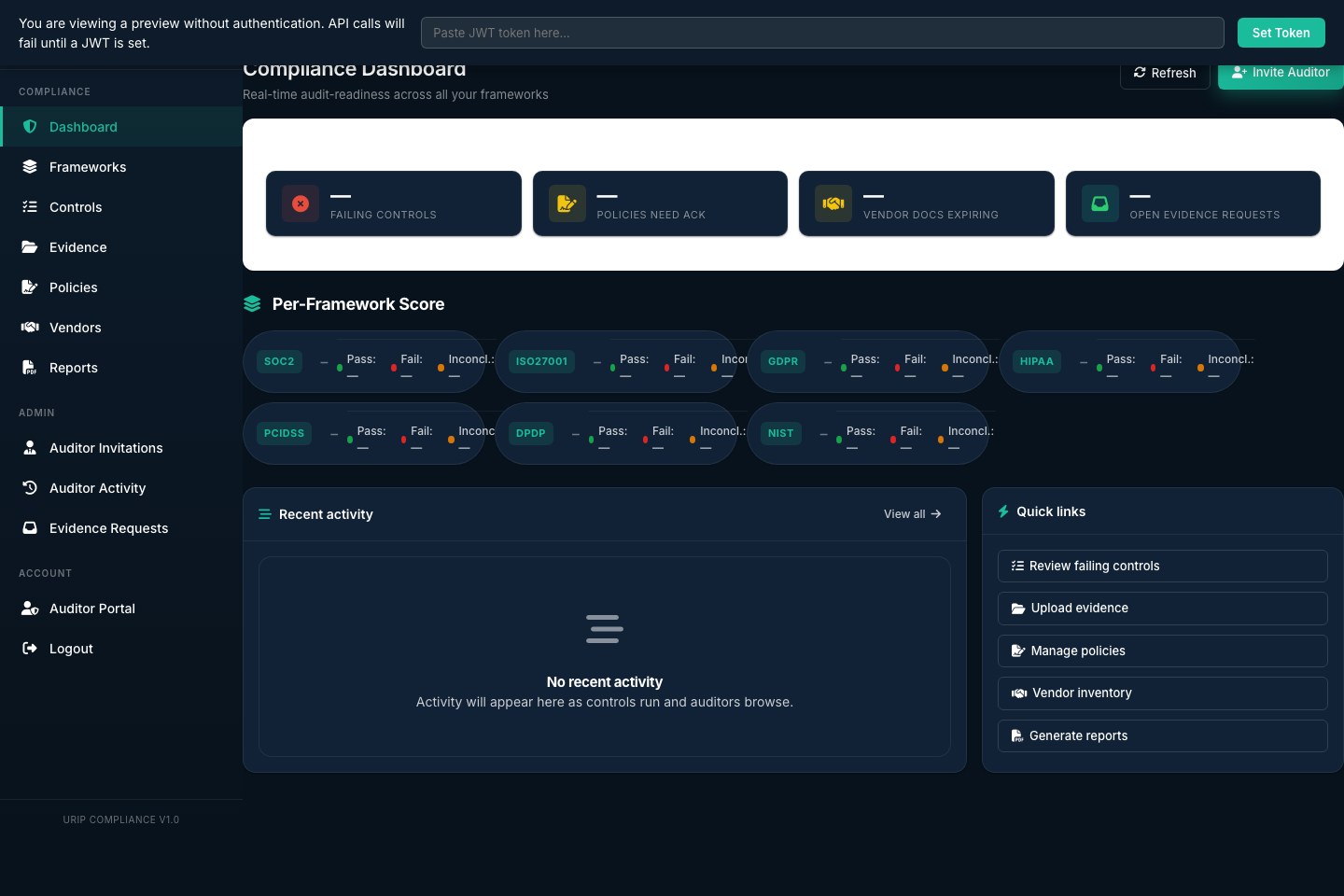
The Compliance Dashboard screenshot above shows the aggregate scorecard view: framework scores, trend lines, and recently failed controls.
Compliance Module Pages
| Page | URL | Purpose |
|---|---|---|
| Dashboard | /compliance/index.html |
Aggregate scores across all active frameworks |
| Frameworks | /compliance-frameworks.html |
List and activate frameworks, view per-framework control detail |
| Controls | /compliance-controls.html |
Full inventory of all controls with pass/fail status |
| Evidence | /compliance-evidence.html |
Upload, manage, and link evidence to controls |
| Evidence Requests | /compliance-evidence-requests.html |
Track auditor evidence requests |
| Policies | /compliance-policies.html |
Policy document repository |
| Vendor Risk | /compliance-vendors.html |
Third-party vendor risk assessments |
| Reports | /compliance-reports.html |
Generate and manage audit-ready PDF reports |
| Auditor Activity | /compliance-auditor-activity.html |
Read-only log of auditor sessions |
| Auditor Invitations | /compliance-auditor-invitations.html |
Create and manage auditor access tokens |
Step 1 — Activate a Framework
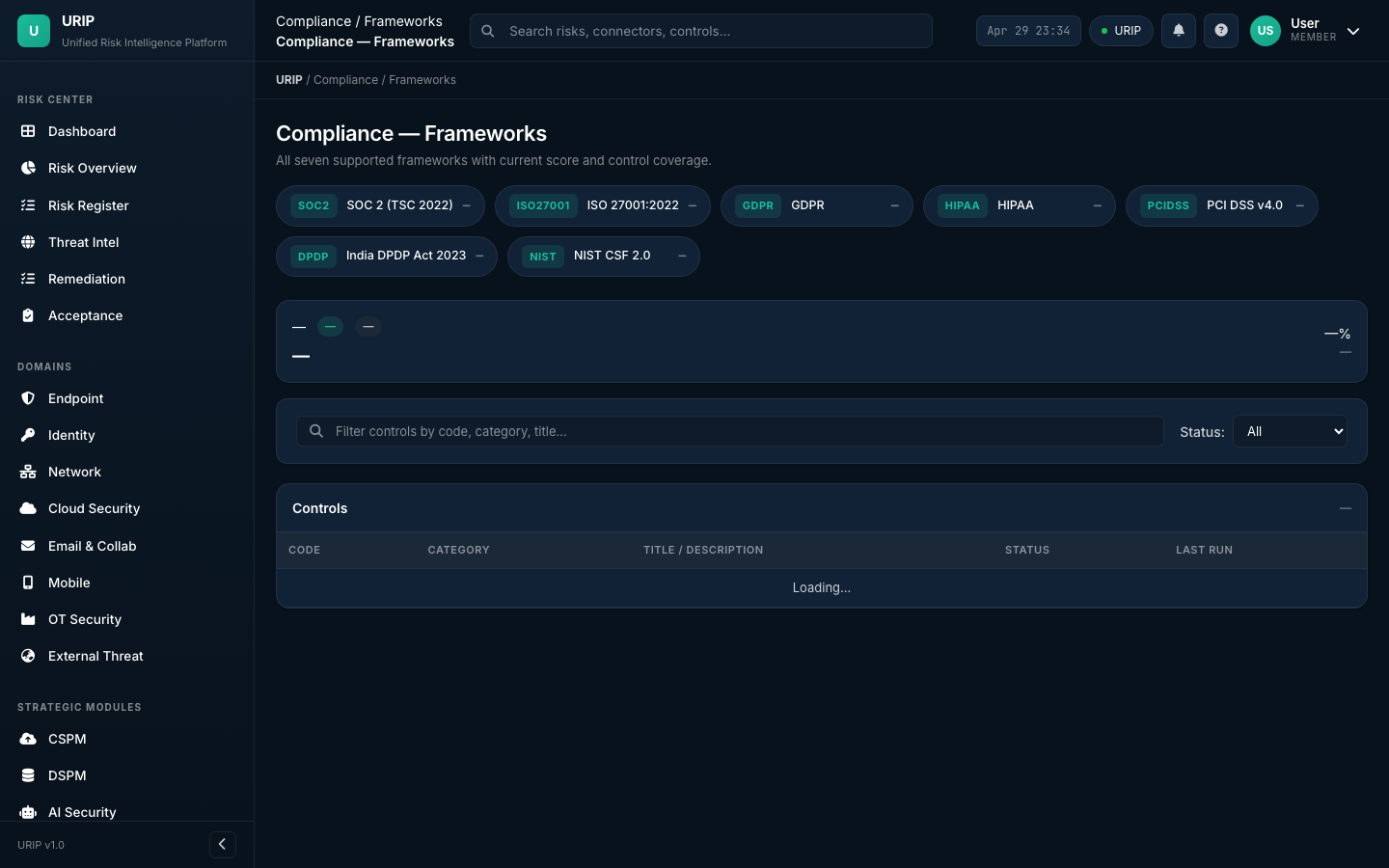
The Frameworks grid screenshot above shows all 20 frameworks with activation status and current scores.
- Navigate to
/compliance-frameworks.html - The grid shows all 20 frameworks with their current score (if previously activated) or "Not started"
- Click any framework tile (e.g., SOC 2)
- The framework activates immediately — controls begin evaluating against your risk data
- Navigate back to
/compliance/index.html— the framework score appears within one hour
Which framework to start with?
| Situation | Recommended framework |
|---|---|
| US SaaS startup, enterprise customers require it | SOC 2 |
| European market, any personal data | GDPR |
| UK/global enterprise certification | ISO 27001:2022 |
| US healthcare | HIPAA |
| Card payments | PCI DSS v4.0 |
| India market | India DPDP Act |
| US defence contractor | CMMC 2.0 |
| US public company | SEC Cybersecurity Disclosure |
| EU financial entity | DORA |
See COMPLIANCE_FRAMEWORKS.md for all 20 frameworks.
Step 2 — Review Control Status
- Navigate to
/compliance-controls.html - Filter by framework, status (pass/fail/inconclusive/not evaluated), or control category
- Click any failing control to open the control detail: - Control code and description - Why it's failing: links to the specific CVEs / risks causing the failure - Evidence requirements: what you need to upload to demonstrate compliance - Connector mapping: which connectors provide data for this control
Control status definitions:
| Status | Meaning |
|---|---|
pass |
All mapped risks and evidence requirements met |
fail |
Open risks violating this control, or required evidence missing |
inconclusive |
Not enough connector data to evaluate this control |
not_evaluated |
Framework activated but engine hasn't run yet (wait up to 1 hour) |
Common failure patterns:
- CC6.1 (SOC 2 Logical Access) fails when Entra ID / Okta shows risky users or MFA not enforced
- A.8.8 (ISO 27001 Vulnerability Mgmt) fails when Critical CVEs remain open past SLA
- Article 32 (GDPR) fails when DSPM shows unencrypted PII in storage
Manual control override:
Sometimes a control evaluation is "inconclusive" or you have external evidence that URIP cannot automatically detect (for example, a physical access log that exists only on paper).
- Navigate to Compliance → Controls
- Find the control and open its detail drawer
- Click Override Status
- Select the new status (pass / fail) and enter a justification
- Optionally upload evidence directly in the override dialog
- Click Save — the override is logged in the audit trail with your name, timestamp, and reason
Important: Overrides are visible to auditors. Always provide a clear justification. The original auto-evaluated status is preserved in the history.
Exporting evidence to your auditor:
You do not need to email files individually. URIP offers two ways to package evidence:
-
Full Audit Package (recommended): - Go to Compliance → Reports - Select the framework and report type Full Audit Package - Click Generate — URIP compiles a single PDF with:
- Executive summary
- Control-by-control pass/fail table
- Evidence inventory with file names and upload dates
- Open risk summary
- Auditor activity log
- Download and send to your auditor
-
Evidence-only export: - Go to Compliance → Evidence - Select the evidence items you want - Click Export Selected — URIP creates a ZIP of the files - The ZIP includes a manifest CSV mapping each file to its control
Auditor data isolation: External auditors invited through the Auditor Portal can only see the frameworks you scoped to their invitation. They cannot see other tenants, other frameworks, your user list, or connector credentials. See the Auditor Portal Guide for the full security and privacy explanation.
Step 3 — Upload Evidence
Evidence is what proves to an auditor that your controls are in place.
- Navigate to
/compliance-evidence.html - Click Upload Evidence
- Fill in: - Title — descriptive name (e.g., "Password Policy v2.1 — Approved 2026-03") - Evidence type — Policy / Screenshot / Log / Report / Attestation - Framework — which framework this evidence supports - Controls — select the controls this evidence satisfies - File — upload PDF, PNG, DOCX, or CSV (max 25 MB)
- Save → evidence is linked to the controls automatically
Evidence types:
| Type | Examples |
|---|---|
| Policy | Information Security Policy, Access Control Policy, Incident Response Policy |
| Screenshot | MFA enabled screenshot, encryption config screenshot |
| Log | Audit log export, access review export, training completion report |
| Report | Penetration test report, vulnerability scan output, risk assessment |
| Attestation | Signed management review, vendor assessment sign-off |
Auto-evidence (from connectors): Some evidence is collected automatically from connectors: - Vulnerability scan reports → Tenable/Qualys - Access review data → Entra ID / Okta - Training completion → KnowBe4 / Hoxhunt - Audit logs → the URIP audit log itself
Step 4 — Handle Evidence Requests
When an auditor requests specific evidence, it appears in the evidence request tracker.
- Navigate to
/compliance-evidence-requests.html - Open the request from your auditor
- Upload the requested item using the Fulfil Request button
- The auditor sees the uploaded file in their read-only view
Response SLAs (typical): - Internal audit: 5 business days - External audit: 48 hours (check your audit agreement)
Step 5 — Manage Policies
All policies must be uploaded and linked to relevant controls to satisfy evidence requirements.
- Navigate to
/compliance-policies.html - Click Add Policy
- Upload the policy document and fill in: - Policy name, version, effective date, review date - Owner (user in your URIP tenant) - Frameworks covered
- Save
Minimum policy set for SOC 2: - Information Security Policy - Access Control Policy - Incident Response Policy - Change Management Policy - Vendor Management Policy - Business Continuity Policy
Minimum for ISO 27001: All of the above, plus: - Risk Assessment Methodology - Statement of Applicability (SoA) - Asset Classification Policy - Acceptable Use Policy
Step 6 — Vendor Risk Assessment
Third-party risk management is required by most compliance frameworks.
- Navigate to
/compliance-vendors.html - Click Add Vendor
- Fill in vendor details and set risk tier (Critical / High / Medium / Low)
- Send a questionnaire (URIP uses a simplified SIG-equivalent questionnaire)
- Vendor responds via a shared link (no URIP account required)
- Review responses and set assessment status
When to assess a vendor: - Any vendor with access to customer data: Critical tier - Any vendor running software in production: High tier - Any SaaS tool used by employees: Medium tier
Compliance mapping: Vendor assessments automatically contribute to: - SOC 2 CC9 (Vendor Management) - ISO 27001 A.5.19 (Supplier Relationships) - DORA Article 28 (ICT Third-Party Risk) - NIS2 Article 21 (Supply Chain Security)
Step 7 — Invite an Auditor
URIP provides time-bound, framework-scoped, read-only auditor access without requiring the auditor to be a URIP user.
- Navigate to
/compliance-auditor-invitations.html - Click New Invitation
- Configure: - Auditor name and email (for your records — no email is sent automatically) - Framework scope (which frameworks the auditor can see) - Expiry (7 / 14 / 30 / 60 / 90 days) - NDA requirement (require e-sign before access)
- Copy the generated invitation URL
- Send to your auditor manually via email
What the auditor sees (read-only): - Framework score and control pass/fail status - Evidence linked to controls (files you uploaded) - Your policies - Risk findings that are causing control failures - Evidence requests they have submitted
What the auditor cannot do: - Modify any data - See other tenants - See credentials - Download audit logs (they can request via evidence request)
Step 8 — Generate Reports
- Navigate to
/compliance-reports.html - Click Generate Report
- Select: Framework + Report type (Readiness Assessment / Gap Analysis / Full Audit Package)
- Click Generate — PDF is compiled in the background (up to 30 seconds)
- Download the PDF
Report contents (Full Audit Package): - Executive summary with overall score - Control-by-control pass/fail table - Evidence inventory - Open risk summary (findings causing failures) - Remediation recommendations - Appendix: raw control data
Tenant branding: Reports include your tenant's logo, name, and accent colours (configured at tenant creation).
Compliance Dashboard
The compliance dashboard (/compliance/index.html) shows:
- Score cards for each active framework (percentage of controls passing)
- 30-day trend for each framework score
- Recently failed controls (last 7 days)
- Upcoming evidence review dates
- Active auditor sessions
Score interpretation:
| Score | Readiness |
|---|---|
| 90–100% | Audit-ready — minor gaps only |
| 75–89% | Approaching readiness — targeted remediation needed |
| 50–74% | Significant work needed — 60–90 days of remediation |
| < 50% | Major gaps — not audit-ready |
Auditor Activity Log
Navigate to /compliance-auditor-activity.html to see a log of all auditor sessions: when they logged in, which controls they viewed, which evidence items they accessed, and any evidence requests they submitted.
This log is immutable and is automatically included in the Full Audit Package report.
Common Pitfalls
- Controls stuck at "inconclusive" — Add more connectors. Inconclusive means there's not enough data to evaluate the control. See which connectors are needed in the control detail view.
- Score dropped overnight — A new CVE was discovered in the CISA KEV catalog that maps to one of your failing controls. Check the Risk Register for new KEV additions.
- Auditor token expired — Tokens are time-limited by design. Reissue at
/compliance-auditor-invitations.html. - Framework "not found" error — The compliance database seeders need to be re-run. See TROUBLESHOOTING.md — Framework Not Found.
See Also
- COMPLIANCE_FRAMEWORKS.md — All 20 framework details
- USER_GUIDE.md — Compliance
- TROUBLESHOOTING.md — Compliance